> ## Documentation Index
> Fetch the complete documentation index at: https://documentation.litmuscheck.com/llms.txt
> Use this file to discover all available pages before exploring further.
# Create your first test
> Learn how to write a basic test
## Create a new suite
**View your suites**\
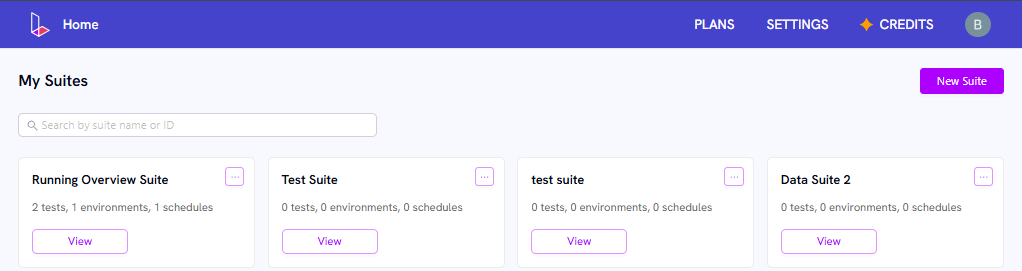
Once you are logged in, your test suites appear on your homepage.
 **Create a suite**\
Click the **New Suite** button at the top of the sidebar.
Enter your `Suite Name`, `URL` and click the **Create** button.
**Create a suite**\
Click the **New Suite** button at the top of the sidebar.
Enter your `Suite Name`, `URL` and click the **Create** button.
 **View suite details**\
Click on the suite name or **View** button on the homepage.
**View suite details**\
Click on the suite name or **View** button on the homepage.
 ## Create a test
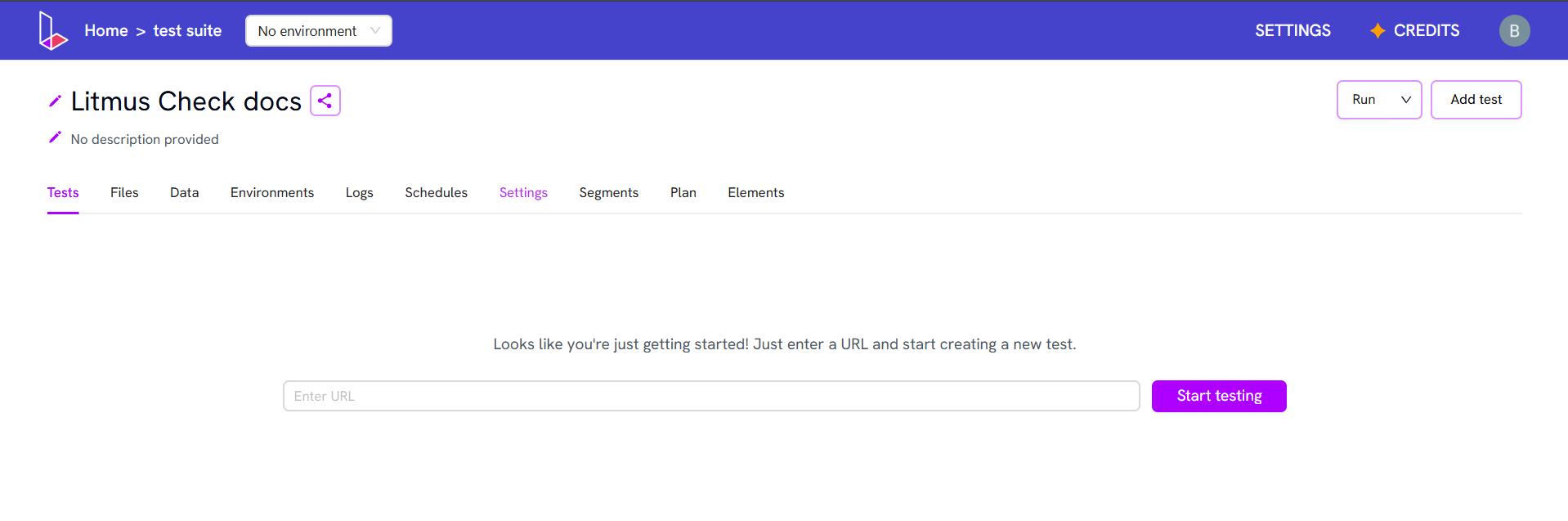
Inside a suite, click the **Add Test** button on the right to launch the Compose View.
### Adding steps
* Enter `saucedemo.com` in the Go to URL input and click **Add**
* Click on **Add** icon and select **Input**
## Create a test
Inside a suite, click the **Add Test** button on the right to launch the Compose View.
### Adding steps
* Enter `saucedemo.com` in the Go to URL input and click **Add**
* Click on **Add** icon and select **Input**
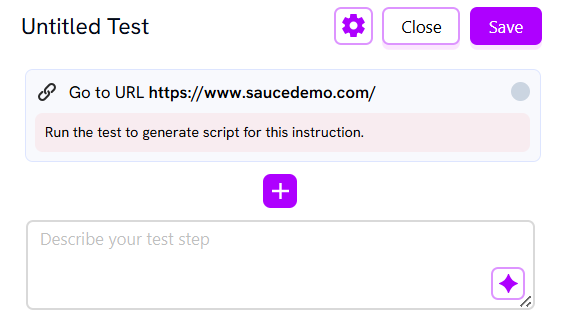 * Enter `standard_user` in **value**, select **New Element**, and enter Username as **prompt**
* Click on **Add** icon and select **Input**
* Enter `secret_sauce` in **value**, select **New Element**, and enter Password as **prompt**
### Live browser view
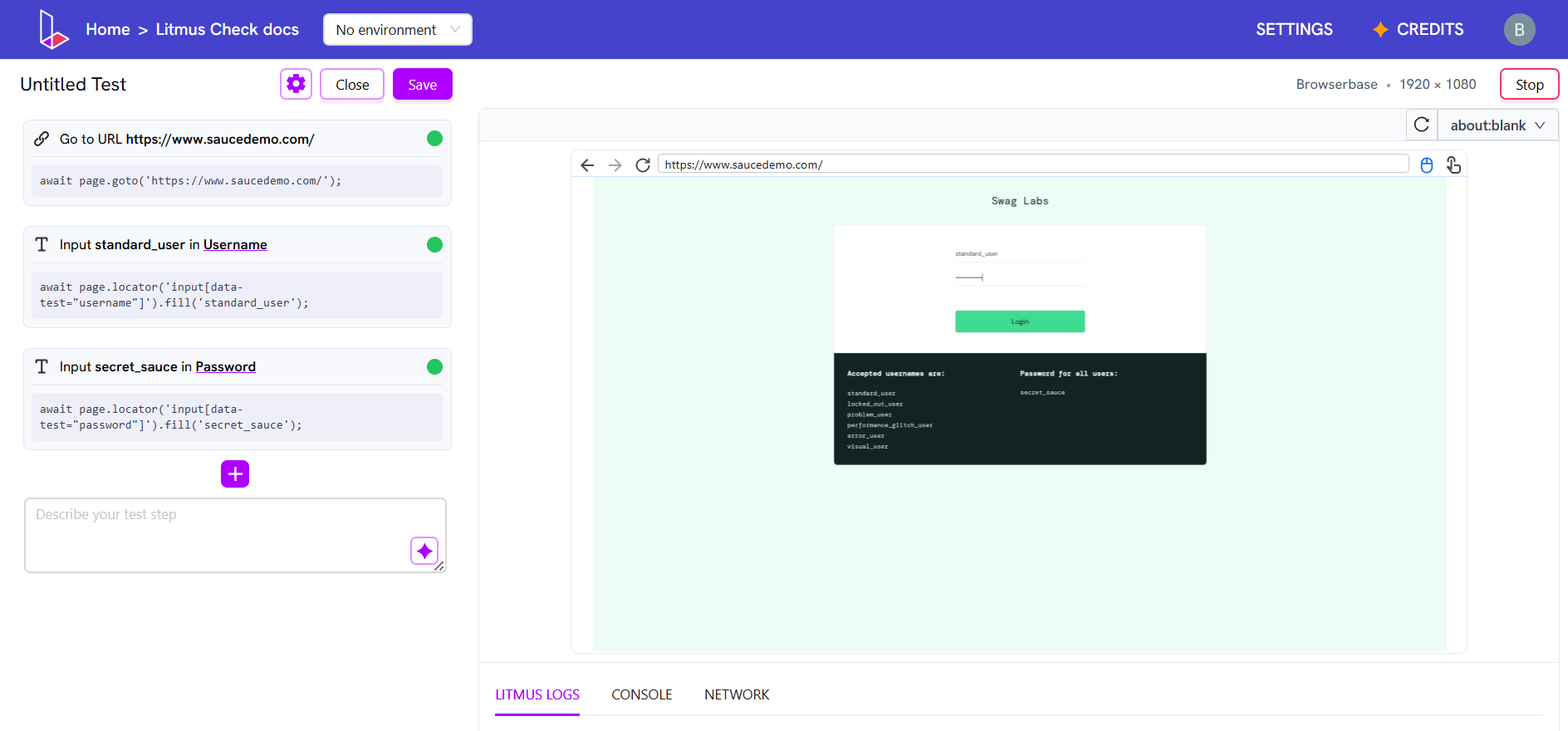
The browser pane on the right shows your test in action.
* Click **Start Run** to open the session.
* Click **Stop** to end it.
* Enter `standard_user` in **value**, select **New Element**, and enter Username as **prompt**
* Click on **Add** icon and select **Input**
* Enter `secret_sauce` in **value**, select **New Element**, and enter Password as **prompt**
### Live browser view
The browser pane on the right shows your test in action.
* Click **Start Run** to open the session.
* Click **Stop** to end it.
 ### Adding more steps
When adding more steps while live view is on, the steps continue to execute.
* Click on **Add** icon and select **Click**
* Select **New Element** and enter Login as **prompt**
The live mode will show the execution of the click step.
### Adding goals
### Adding more steps
When adding more steps while live view is on, the steps continue to execute.
* Click on **Add** icon and select **Click**
* Select **New Element** and enter Login as **prompt**
The live mode will show the execution of the click step.
### Adding goals
 Enter a natural-language goal in the bottom input and press **Enter**. The autonomous agent will attempt all available actions to reach your goal. When complete (or if it gets stuck), it will show the sequence of steps it took. You can discard them or add them to your test.
> **Tip:** Keep goals simple for best results.
Enter a natural-language goal in the bottom input and press **Enter**. The autonomous agent will attempt all available actions to reach your goal. When complete (or if it gets stuck), it will show the sequence of steps it took. You can discard them or add them to your test.
> **Tip:** Keep goals simple for best results.
 ### Viewing script and selectors
When an instruction runs, its generated script appears in the script box. Click the element description to toggle between available selectors.
### Saving and discarding
* Click **Save** to persist your test (there is no autosave).
* Click **Discard** to throw away unsaved changes.
### Viewing script and selectors
When an instruction runs, its generated script appears in the script box. Click the element description to toggle between available selectors.
### Saving and discarding
* Click **Save** to persist your test (there is no autosave).
* Click **Discard** to throw away unsaved changes.