> ## Documentation Index
> Fetch the complete documentation index at: https://documentation.litmuscheck.com/llms.txt
> Use this file to discover all available pages before exploring further.
# Tags
> Use tags to organize and run specific groups of tests.
## Adding and Using Tags
To add or use tags for your tests:
1. Go to the suite page.
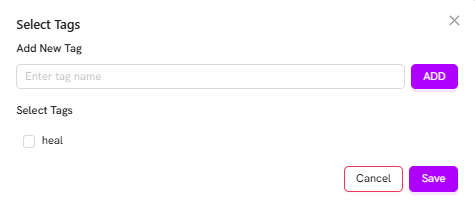
2. Click on the **Add** icon in the **Tags** section.
3. Add a new tag by entering a name and clicking on **Add**.
4. Or, select an existing tag and click **Save**.
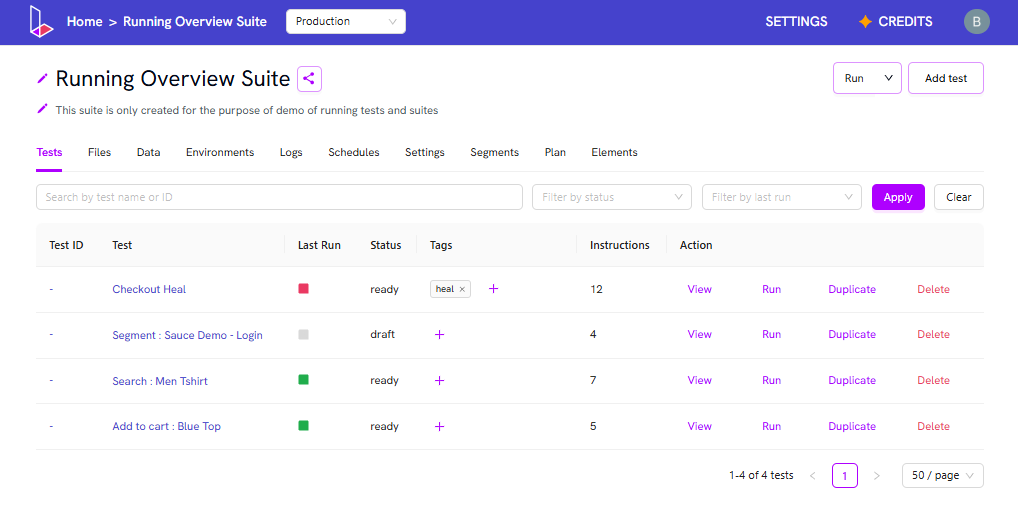
 After selecting tags, the suite page will display the chosen tags next to the tests. For example:
 ## Run a Suite Using Tags
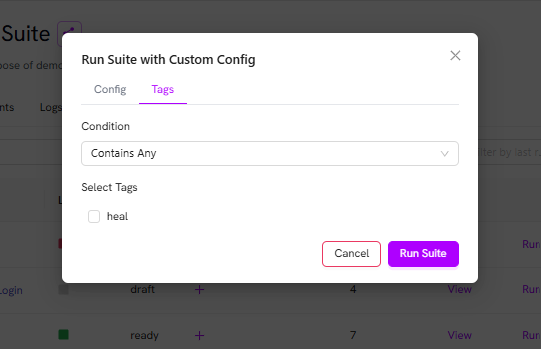
To run a suite using tags:
1. On the suite page, click the dropdown arrow next to **Run**.
2. Click on **Choose config**.
3. In the configuration panel, go to the **Tags** section.
4. Select the desired condition from the dropdown (e.g., **Contains any** or **Does not contain any**).
5. Choose the tag(s) you want to use for filtering.
6. Click **Run Suite** to execute the suite with the selected tag filter.
## Run a Suite Using Tags
To run a suite using tags:
1. On the suite page, click the dropdown arrow next to **Run**.
2. Click on **Choose config**.
3. In the configuration panel, go to the **Tags** section.
4. Select the desired condition from the dropdown (e.g., **Contains any** or **Does not contain any**).
5. Choose the tag(s) you want to use for filtering.
6. Click **Run Suite** to execute the suite with the selected tag filter.